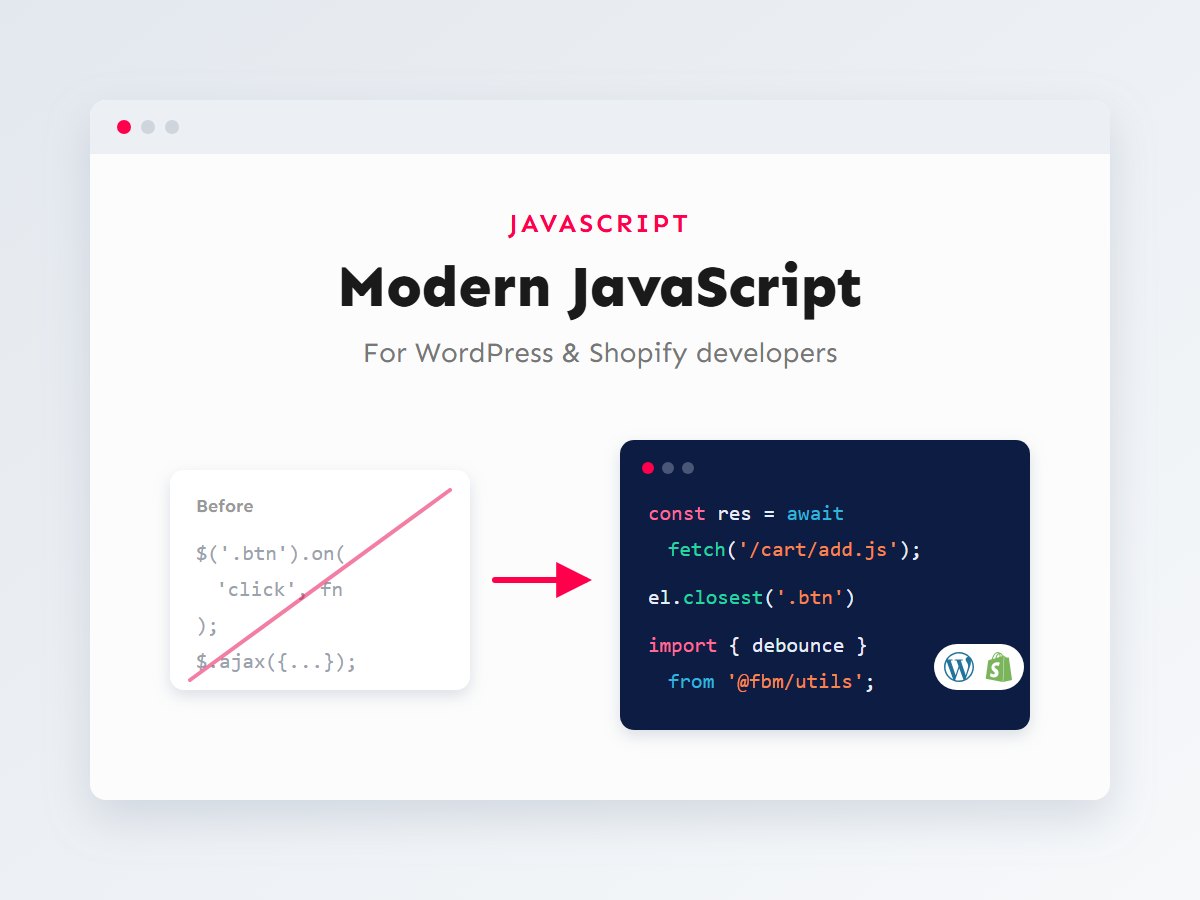

For a long time, writing JavaScript for a WordPress or Shopify site meant writing jQuery. It smoothed over browser differences, made AJAX simple and was already loaded on most WordPress sites. Those browser differences are mostly gone now. Modern JavaScript has everything jQuery gave us, built in: easy element selection, fetch() for requests, async/await, modules and powerful browser APIs.
This guide is for WordPress and Shopify developers who know their way around jQuery and want to write leaner, faster, more maintainable code without a framework. I’ll cover the patterns I use every day: selecting and changing elements, event delegation, fetching data from the WordPress REST API and Shopify’s Ajax Cart API, debouncing, IntersectionObserver and loading your code as modules on both platforms.
In this article
Why move beyond jQuery (and when not to)
jQuery isn’t bad. It is extra weight the browser has to download and parse before your code runs, though, and today it mostly wraps features the browser already has. On Shopify, modern themes such as Dawn don’t include jQuery at all, so adding it just for a few lines of code means adding a library to every page of the store. On the WordPress frontend, many block themes no longer need it either.
That said, be practical:
- Keep jQuery where it is already required. The WordPress admin, WooCommerce’s classic scripts and many plugins depend on it. If a page loads it anyway, a few lines of jQuery cost nothing extra.
- Don’t rewrite working code for its own sake. Write new code in modern JavaScript, and migrate old code when you’re changing it anyway.
- Avoid adding jQuery to a page or theme that doesn’t already load it.
jQuery to modern JavaScript cheat sheet
Most everyday jQuery has a direct modern equivalent. Here are the ones I use most:
| Task | jQuery | Modern JavaScript |
|---|---|---|
| Select elements | $('.card') | document.querySelectorAll('.card') |
| Select one element | $('#cart') | document.querySelector('#cart') |
| Classes | .addClass('open') | el.classList.add('open') |
| Toggle visibility | .hide() / .show() | el.hidden = true / false |
| Data attributes | .data('id') | el.dataset.id |
| Events | .on('click', fn) | el.addEventListener('click', fn) |
| Delegated events | $(document).on('click', '.btn', fn) | one listener + event.target.closest('.btn') |
| Closest ancestor | .closest('.card') | el.closest('.card') |
| AJAX | $.ajax(), $.getJSON() | await fetch(url) |
| DOM ready | $(document).ready(fn) | defer or module scripts |
Note the last row. Scripts loaded with defer or type="module" run after the HTML has been parsed, so you rarely need a “DOM ready” wrapper at all.
Event delegation
Many jQuery habits attach a listener to every matching element. That breaks as soon as elements are added later: products loaded by “load more”, a cart drawer re-rendered after an update, a WooCommerce fragment refresh. Event delegation fixes this. Events bubble up the DOM, so one listener on a parent can handle clicks on any child, including children that don’t exist yet.
// One listener for every "add to cart" button, now and in the future.
document.addEventListener( 'click', ( event ) => {
	const button = event.target.closest( '[data-add-to-cart]' );
	if ( ! button ) {
		return; // The click was somewhere else.
	}

	event.preventDefault();
	handleAddToCart( button ); // Defined in the next section.
} );
closest() matters here: if the button contains an icon or a <span>, event.target is that inner element, and closest() walks up to the button itself.
fetch() and async/await
fetch() replaces $.ajax(), and async/await lets you write asynchronous code that reads top to bottom. Two habits will save you hours of debugging: always check response.ok (fetch only rejects on network errors, not on 404 or 500 responses), and always handle errors so the interface never gets stuck.
Shopify: add to cart without a page reload
Shopify’s Ajax Cart API lets the storefront add items and read the cart with simple JSON requests. Using window.Shopify.routes.root keeps the URLs correct on stores with multiple languages or markets.
const root = window.Shopify?.routes?.root ?? '/';

async function addToCart( variantId, quantity = 1 ) {
	const response = await fetch( `${ root }cart/add.js`, {
		method: 'POST',
		headers: {
			'Content-Type': 'application/json',
			Accept: 'application/json',
		},
		body: JSON.stringify( { items: [ { id: variantId, quantity } ] } ),
	} );

	const data = await response.json();
	if ( ! response.ok ) {
		// Shopify explains the problem, e.g. "sold out" or a quantity limit.
		throw new Error( data.description || 'Could not add this item.' );
	}
	return data;
}

async function refreshCartCount() {
	const response = await fetch( `${ root }cart.js` );
	const cart = await response.json();
	document.querySelectorAll( '[data-cart-count]' ).forEach( ( el ) => {
		el.textContent = cart.item_count;
	} );
}

async function handleAddToCart( button ) {
	const message = button.parentElement.querySelector( '[data-cart-message]' );
	button.disabled = true;

	try {
		await addToCart( Number( button.dataset.variantId ) );
		await refreshCartCount();
		if ( message ) message.textContent = 'Added to your cart.';
	} catch ( error ) {
		if ( message ) message.textContent = error.message;
	} finally {
		button.disabled = false; // Never leave the button stuck.
	}
}
The matching Liquid only needs the variant ID in a data attribute and an element for messages. A live region announces the result to screen-reader users:
<button type="button"
        data-add-to-cart
        data-variant-id="{{ product.selected_or_first_available_variant.id }}"
        {% unless product.available %}disabled{% endunless %}>
  Add to cart
</button>
<p data-cart-message role="status" aria-live="polite"></p>
WordPress: load posts from the REST API
WordPress exposes its content as JSON at /wp-json/wp/v2/. Pass the API root from PHP rather than hard-coding it, and use _fields to request only the data you need, which keeps responses small:
<?php
// functions.php (or your plugin): load the script and tell it where the API is.
add_action( 'wp_enqueue_scripts', function () {
	wp_enqueue_script(
		'fbm-latest-posts',
		get_theme_file_uri( 'assets/js/latest-posts.js' ),
		array(),
		'1.0.0',
		array( 'strategy' => 'defer', 'in_footer' => true )
	);
	wp_add_inline_script(
		'fbm-latest-posts',
		'const fbmApi = ' . wp_json_encode( array( 'root' => esc_url_raw( rest_url() ) ) ) . ';',
		'before'
	);
} );
// assets/js/latest-posts.js
const decode = ( html ) =>
new DOMParser().parseFromString( html, 'text/html' ).body.textContent;
async function loadLatestPosts( list ) {
const url = new URL( 'wp/v2/posts', fbmApi.root );
url.searchParams.set( 'per_page', '3' );
url.searchParams.set( '_fields', 'id,title,link' );
try {
const response = await fetch( url );
if ( ! response.ok ) {
throw new Error( `HTTP ${ response.status }` );
}
const posts = await response.json();
list.replaceChildren(
...posts.map( ( post ) => {
const item = document.createElement( 'li' );
const link = document.createElement( 'a' );
link.href = post.link;
link.textContent = decode( post.title.rendered ); // Safe: text, not HTML.
item.append( link );
return item;
} )
);
} catch ( error ) {
list.textContent = 'Latest posts could not be loaded.';
console.error( error );
}
}
document.querySelectorAll( '[data-latest-posts]' ).forEach( loadLatestPosts );Public content like published posts needs no authentication. For requests that act on behalf of a logged-in user, also pass a nonce created with wp_create_nonce( 'wp_rest' ) and send it in an X-WP-Nonce header. If you build your own endpoints, see extending the WordPress REST API.
Debouncing input
Live search, filters and “check availability” fields often fire a request on every keystroke. Typing “shirts” sends six requests, five of which are useless. Debouncing waits until the user pauses before doing the work:
function debounce( callback, wait = 300 ) {
	let timer;
	return ( ...args ) => {
		clearTimeout( timer );
		timer = setTimeout( () => callback( ...args ), wait );
	};
}

// Shopify predictive search, fired only when the shopper pauses typing.
// (root is defined in the cart example above.)
const input = document.querySelector( '#search-input' );
const results = document.querySelector( '#search-results' );
let controller;

input?.addEventListener(
	'input',
	debounce( async () => {
		const query = input.value.trim();
		if ( query.length < 2 ) {
			results.replaceChildren();
			return;
		}

		controller?.abort(); // Cancel the previous, now outdated request.
		controller = new AbortController();

		const url = `${ root }search/suggest.json?q=${ encodeURIComponent( query ) }` +
			'&resources[type]=product&resources[limit]=4';

		try {
			const response = await fetch( url, { signal: controller.signal } );
			const data = await response.json();
			results.replaceChildren(
				...data.resources.results.products.map( ( product ) => {
					const link = document.createElement( 'a' );
					link.href = product.url;
					link.textContent = product.title;
					return link;
				} )
			);
		} catch ( error ) {
			if ( error.name !== 'AbortError' ) console.error( error );
		}
	}, 300 )
);
The AbortController is a nice extra: if an older request comes back after a newer one, it can’t overwrite fresher results, because it was cancelled.
IntersectionObserver
Old scroll handlers ran on every scroll event and checked element positions by hand, which can make a page feel janky. IntersectionObserver lets the browser tell you when an element enters the viewport, efficiently. I use it for two things: reveal animations, and loading heavy widgets (reviews, maps, videos) only when the shopper scrolls near them.
// Load a heavy third-party widget only when its section is about to appear.
const lazyWidgets = new IntersectionObserver(
	( entries, observer ) => {
		entries.forEach( ( entry ) => {
			if ( ! entry.isIntersecting ) return;

			const section = entry.target;
			const script = document.createElement( 'script' );
			script.src = section.dataset.widgetSrc;
			script.async = true;
			document.body.append( script );

			observer.unobserve( section ); // Load once.
		} );
	},
	{ rootMargin: '300px 0px' } // Start loading a little before it is visible.
);

document.querySelectorAll( '[data-widget-src]' ).forEach( ( section ) => {
	lazyWidgets.observe( section );
} );
Deferring widgets like this keeps the main thread free while the page loads, which directly helps Interaction to Next Paint. It’s one of the techniques I use in Shopify speed optimization and the WordPress Core Web Vitals checklist.
Loading modern JavaScript in WordPress and Shopify
Splitting code into ES modules (import/export) keeps files small and focused. Module scripts are deferred automatically and run in strict mode, and every modern browser supports them.
WordPress
Since WordPress 6.5 there is a dedicated Script Modules API. Register and enqueue a module much like a classic script, and WordPress prints the import map and the type="module" tag for you:
<?php
add_action( 'wp_enqueue_scripts', function () {
	// Shared helpers other modules can import by ID.
	wp_register_script_module(
		'@fbm/cart-utils',
		get_theme_file_uri( 'assets/js/cart-utils.js' ),
		array(),
		'1.0.0'
	);

	// The entry module, which imports '@fbm/cart-utils'.
	wp_enqueue_script_module(
		'@fbm/cart',
		get_theme_file_uri( 'assets/js/cart.js' ),
		array( '@fbm/cart-utils' ),
		'1.0.0'
	);
} );
// assets/js/cart.js
import { debounce } from '@fbm/cart-utils';
// ... your code, already running after the HTML is parsed.For classic (non-module) scripts, use the strategy argument to load them with defer or async, as in the REST API example above. And if your JavaScript is a block, you’re in React territory; see building custom Gutenberg blocks with React.
Shopify
In a Shopify theme, put your files in the assets folder and load them with asset_url. Load section-specific code from the section’s own Liquid file so it’s only downloaded where the section is used:
{%- comment -%} sections/product-quick-add.liquid {%- endcomment -%}
<script type="module" src="{{ 'product-quick-add.js' | asset_url }}"></script>

{%- comment -%} Classic script alternative {%- endcomment -%}
<script src="{{ 'product-quick-add.js' | asset_url }}" defer></script>
One tip for Shopify themes: wrap interactive components in custom elements (class QuickAdd extends HTMLElement), the pattern Dawn uses. The browser runs the component’s setup automatically whenever its tag appears on the page, including after the theme editor re-renders a section.
Progressive enhancement and accessibility
The best interactive features start from HTML that already works, then add JavaScript on top. On a store, that means the “Add to cart” button sits inside a real <form action="/cart/add">. If a script fails to load, or a visitor’s connection drops halfway, the form still submits the normal way. Your JavaScript intercepts the submit event and upgrades it to the AJAX version.
A few habits keep JavaScript-driven interfaces usable for everyone:
- Use real buttons and links. A
<button>is focusable and works with the keyboard for free; a clickable<div>is not. - Announce changes. When content updates without a reload (cart count, search results, error messages), put it in an element with
role="status"oraria-live="polite"so screen readers hear it. - Manage focus. When you open a cart drawer or modal, move focus into it, and return focus to the trigger button when it closes.
- Reflect state in attributes. Toggle
aria-expandedon menu and accordion buttons, and usedisabledwhile a request is in flight. - Respect reduced motion. Check
window.matchMedia( '(prefers-reduced-motion: reduce)' )before running reveal animations.
None of this adds much code, and it makes the difference between a feature that works in a demo and one that works for every shopper.
Key takeaways
- Modern JavaScript covers everything jQuery was used for. Keep jQuery where it’s already required; don’t add it to pages that don’t load it.
- Use event delegation with
closest()so dynamic content just works. - With
fetch(), always checkresponse.ok, handle errors and re-enable buttons infinally. - Debounce input-driven requests and cancel outdated ones with
AbortController. - Use
IntersectionObserverto load heavy widgets only when needed, and load scripts as modules or withdefer.
Small, focused vanilla JavaScript is one of the easiest ways to make a WordPress or Shopify site feel faster and more polished. If you have a feature in mind, like an AJAX cart, live search or a custom product configurator, get in touch and I’ll help you build it cleanly.