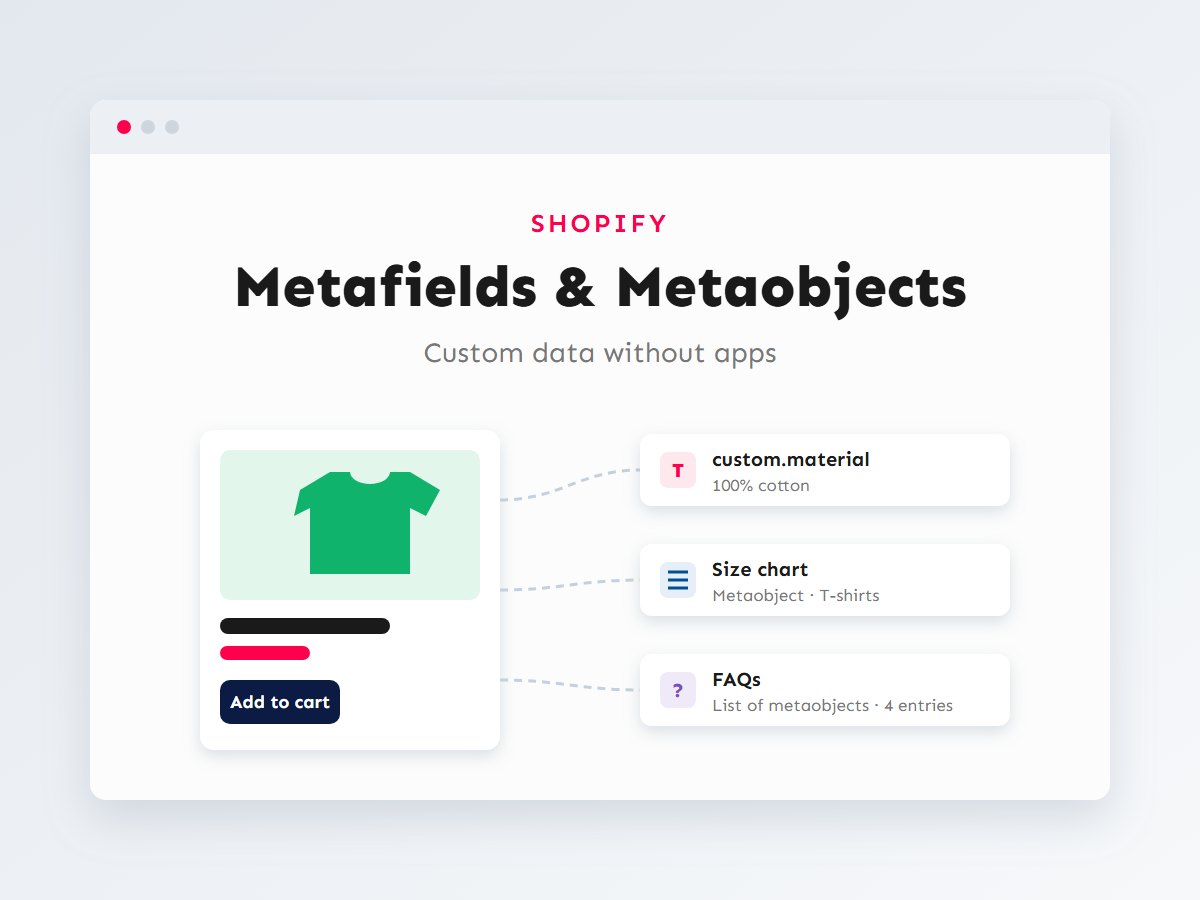

Every Shopify store eventually needs to show information the default product form has no field for: a size chart, fabric and care details, technical specifications, ingredients, a product-specific FAQ, a “designed by” credit. For years the answer was a paid app, or long product descriptions full of hand-formatted tables that broke every time someone edited them.
Today Shopify has two built-in tools for this: metafields and metaobjects. Together they let you add structured custom data to your store, edit it in the admin like any other field, and display it in your theme with no app and no monthly fee. In this guide I’ll explain how they work, how they relate to each other, how to read them in Liquid, and the patterns I use most on client stores.
In this article
Metafields and metaobjects in plain words
A metafield is an extra field attached to an existing Shopify resource: a product, a variant, a collection, a customer, an order, a page or the shop itself. “Material” on a product, “Lead time” on a variant or “Banner text” on a collection are all metafields. Each one has a namespace and a key (for example custom.material) and a type, such as single-line text, number, rich text, date, file, color, URL or a reference to something else.
A metaobject is a custom content type of your own, with its own fields and its own entries. Think of it as a small database table you design. A “Size chart” metaobject might have a title, a rich-text chart and a fit note, and you’d create one entry for T-shirts, one for hoodies and one for jeans. Products then point to the right entry using a metafield of type “metaobject reference”.
If you come from WordPress, the mapping is close: metafields are like custom fields on a post, and metaobjects are like a custom post type that other content links to. I cover the WordPress side in custom post types and custom fields.
How the pieces fit together
The diagram below shows the model. Resources own metafields. Most metafields hold a simple value, but a reference-type metafield can point to a metaobject entry, which is a reusable record shared by many products.
The reference is what makes metaobjects powerful. If 120 T-shirts all point to the same “T-shirts” size chart entry, fixing a measurement in that one entry updates every product page instantly. Copying the chart into 120 descriptions would mean 120 edits.
Metafield or metaobject: which one?
A simple rule: if the information belongs to one product and is a single value, use a plain metafield. If the information is a structured record with several fields, or the same record is shared by many products, create a metaobject and reference it.
| Question | Metafield | Metaobject |
|---|---|---|
| What is it? | An extra field on an existing resource | Your own content type with entries |
| Holds | One value (or a list of one type) | A record with several fields |
| Shared across products? | No, each product has its own value | Yes, via reference metafields |
| Good examples | Material, weight, lead time, badge text | Size charts, designers, ingredients, FAQs, store locations |
| Edited in | The resource’s page in the admin | Content → Metaobjects (its own screen) |
Creating definitions in the admin
Both metafields and metaobjects start with a definition: a description of the field or type, which tells Shopify what to store and how to validate it. Values without a definition still work in code, but definitions are what make the data editable and safe for non-developers.
A product metafield
- Go to Settings → Custom data → Products and choose Add definition.
- Give it a clear name (“Material”). Shopify suggests the namespace and key, usually
custom.material; keep keys short, lowercase and stable, because your Liquid code will depend on them. - Pick the type (single-line text here) and add validation if useful, such as a character limit or a fixed list of choices.
- Save. A new “Material” field now appears at the bottom of every product page in the admin.
A metaobject
- Go to Settings → Custom data → Metaobjects and add a definition, for example “Size chart” with the type handle
size_chart. - Add fields:
title(single-line text),chart(rich text) andfit_note(single-line text). - Make sure storefront access is enabled for the definition, so themes can read it.
- Create entries under Content → Metaobjects: “T-shirts”, “Hoodies”, “Jeans”.
- Finally, add a product metafield definition
custom.size_chartof type “Metaobject reference” limited tosize_chart, and pick the right chart on each product.
Tip: fill values in bulk
For large catalogues, open the product list, select products and use Bulk edit; you can add metafield columns and fill them like a spreadsheet. Shopify’s product CSV export and import also include metafield columns for definitions you’ve created.
Showing data with dynamic sources (no code)
In Online Store 2.0 themes, many section and block settings can be connected to a metafield directly in the theme editor. Click the setting, choose Connect dynamic source (the database-style icon next to the field), and pick the metafield. The block now shows each product’s own value instead of one fixed text.
This is perfect for simple cases: a “Material” line under the price, a collapsible “Care” tab filled from a rich-text metafield, or a product badge. It only works where the theme’s setting type is compatible with the metafield type (text with text, rich text with rich text, image with file, and so on). When you need loops, conditions or a custom layout, it’s time for Liquid. If you’re new to sections and blocks, my Shopify theme development guide explains the structure.
Reading metafields and metaobjects in Liquid
Metafields are available on their resource object as resource.metafields.namespace.key. Add .value to get the typed value, which is what you need for references, lists, numbers and dates. For display, the metafield_tag filter renders a metafield as sensible HTML (rich text becomes paragraphs and lists, files become images or links).
Simple values
{%- assign material = product.metafields.custom.material.value -%}
{%- if material != blank -%}
  <p class="product-material">
    <strong>Material:</strong> {{ material }}
  </p>
{%- endif -%}

{%- comment -%} Rich text: let Shopify build the HTML {%- endcomment -%}
{%- if product.metafields.custom.care_guide != blank -%}
  <div class="product-care">
    {{ product.metafields.custom.care_guide | metafield_tag }}
  </div>
{%- endif -%}
Always wrap metafield output in a blank check. Most products won’t have every field filled in, and an empty heading with no content looks broken.
Following a reference to a metaobject
A metaobject reference’s .value is the metaobject entry itself, so you can read its fields by their keys:
{%- assign chart = product.metafields.custom.size_chart.value -%}
{%- if chart -%}
  <details class="size-chart">
    <summary>{{ chart.title | default: 'Size chart' }}</summary>
    {{ chart.chart | metafield_tag }}
    {%- if chart.fit_note != blank -%}
      <p class="size-chart__note">{{ chart.fit_note }}</p>
    {%- endif -%}
  </details>
{%- endif -%}
Looping over a list of metaobjects
For a “list of metaobject references”, .value is an array you can loop through. Here a product-specific FAQ becomes accessible accordions using native <details> elements, with no JavaScript needed:
{%- assign faqs = product.metafields.custom.faqs.value -%}
{%- if faqs.size > 0 -%}
  <section class="product-faqs">
    <h2>Frequently asked questions</h2>
    {%- for faq in faqs -%}
      <details>
        <summary>{{ faq.question }}</summary>
        {{ faq.answer | metafield_tag }}
      </details>
    {%- endfor -%}
  </section>
{%- endif -%}
Metaobjects that aren’t attached to a product
Some data belongs to the store rather than a product: trust badges, store locations, team members. You can read those entries directly from the global shop.metaobjects object, either one entry by its handle or all entries of a type:
{%- comment -%} One entry by type and handle {%- endcomment -%}
{%- assign tees = shop.metaobjects.size_chart['t-shirts'] -%}
{{ tees.title }}

{%- comment -%} Every entry of a type {%- endcomment -%}
<ul class="trust-badges">
  {%- for badge in shop.metaobjects.trust_badge.values -%}
    <li>
      {{ badge.icon | image_url: width: 64 | image_tag: loading: 'lazy', alt: badge.label }}
      <span>{{ badge.label }}</span>
    </li>
  {%- endfor -%}
</ul>
Put snippets like these in their own section or block so merchants can add, move and remove them in the theme editor, rather than hard-coding them into the product template.
Real use cases that replace apps
These are the patterns I reach for most often. Each one used to be a paid app on many stores; with custom data it becomes a field the team fills in and a small, fast piece of theme code.
- Size charts: a metaobject per garment type, referenced from products. Replaces size chart apps.
- Specifications and care: plain product metafields shown in a specs table or collapsible tab.
- Product FAQs: a list of FAQ metaobjects per product, so common answers are written once and reused.
- Designers, brands or ingredients: metaobjects with an image and a bio, shared by many products. Shopify can even give metaobject entries their own web pages, which works well for a “Meet the designer” page.
- Collection banners and promo text: collection metafields for a hero image or a short promo line per collection.
- Variant details: variant metafields for lead times or per-variant specs that change when the shopper picks an option.
Fewer apps also means a faster store, since many apps inject their own scripts on every page. If speed is a concern, read my Shopify speed optimization guide next.
Common mistakes to avoid
- Forgetting
.value. For references, lists, numbers and dates you need.value; without it you get the metafield object, not the data you expected. - Renaming keys casually. Your theme code depends on
namespace.key. Changing a key in the admin silently breaks every template that uses it. - Using text where a type exists. Store a weight as a weight, a date as a date and a link as a URL. Typed values validate input and are easier to format.
- Skipping storefront access. If a metaobject’s storefront access isn’t enabled, Liquid returns nothing and it looks like a code bug.
- Very large loops. Looping over every entry of a big metaobject type on every page is slow and has limits. Reference only the entries a product needs, or paginate.
- Hard-coding into templates. Wrap custom data in sections and blocks so merchants keep control of the layout.
Key takeaways
- Metafields add extra fields to products, variants, collections and more. Metaobjects are your own content types with entries.
- Use a reference metafield to link many products to one shared metaobject entry, so you edit it once.
- Simple cases need no code: connect a dynamic source in the theme editor.
- In Liquid, use
.valuefor typed data,metafield_tagfor display and always check forblank. - Size charts, specs, FAQs and designer profiles can all replace paid apps.
Custom data is one of the highest-value improvements you can make to a Shopify store: cleaner product pages, fewer apps and a team that can update content without touching code. If you’d like help planning the data model for your store or building the sections to display it, get in touch. You can also compare platforms in my WooCommerce vs Shopify guide.