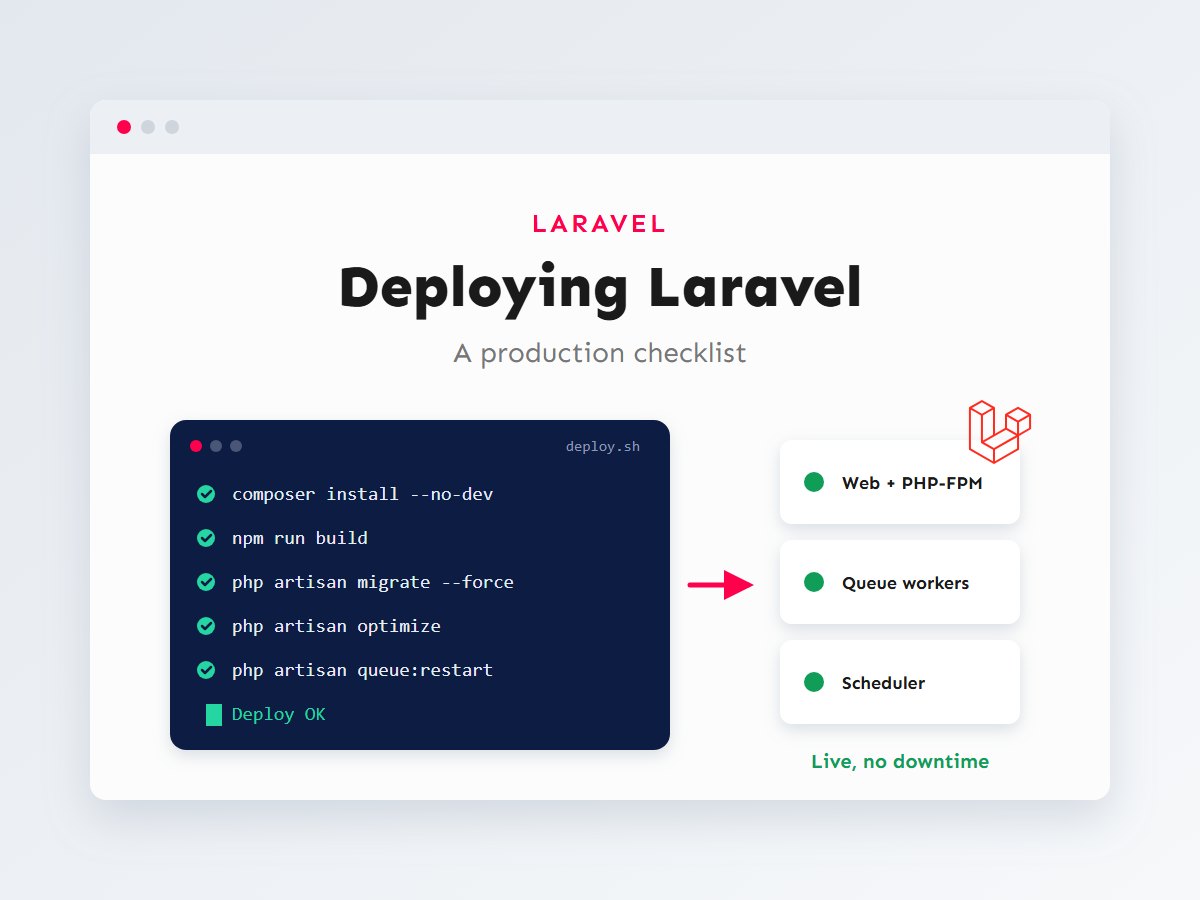

A Laravel application that works perfectly on your laptop can still fall over on its first day in production. The error page shows a stack trace to visitors, uploaded images return 404, emails never send because the queue isn’t running, and the nightly report doesn’t run because nobody set up the scheduler. None of these are code bugs. They’re deployment gaps, and they’re entirely avoidable.
This is the checklist I use when taking a Laravel project live, whether it’s going onto a VPS, a managed platform or a server set up through a tool like Laravel Forge. I’ll go through the deployment pipeline step by step, the environment settings that matter, the background processes most people forget, how to deploy without downtime, and what to monitor once you’re live.
In this article
What a production Laravel server runs
Locally, php artisan serve hides a lot. In production, several separate pieces work together, and each one needs to be configured. It helps to see them all at once:
The most important setting on the web server is the document root: it must point to Laravel’s public/ folder, never to the project root. Otherwise files like .env could be downloadable from the browser.
# Nginx: the essentials of a Laravel server block
server {
    server_name app.example.com;
    root /var/www/app/current/public;   # public/, not the project root
    index index.php;

    location / {
        try_files $uri $uri/ /index.php?$query_string;
    }

    location ~ \.php$ {
        include fastcgi_params;
        fastcgi_param SCRIPT_FILENAME $realpath_root$fastcgi_script_name;
        fastcgi_pass unix:/run/php/php8.3-fpm.sock;
    }

    location ~ /\.(?!well-known).* {
        deny all;                      # never serve dotfiles such as .env
    }
}
Environment: the .env file
The .env file holds everything that differs between your laptop and the server. It must never be committed to Git; create it on the server and keep it outside your deploy folders. These are the values I always double-check before launch:
APP_NAME="Acme Portal"
APP_ENV=production
APP_KEY=base64:...            # generated once with: php artisan key:generate
APP_DEBUG=false               # never true in production
APP_URL=https://app.example.com

LOG_CHANNEL=daily             # one log file per day, old files cleaned up
LOG_LEVEL=warning

DB_CONNECTION=mysql
DB_HOST=127.0.0.1
DB_DATABASE=acme
DB_USERNAME=acme_app          # a dedicated user, not root
DB_PASSWORD=...

QUEUE_CONNECTION=database     # or redis; not "sync" if you rely on queues
CACHE_STORE=database          # or redis
SESSION_DRIVER=database
SESSION_SECURE_COOKIE=true

MAIL_MAILER=smtp              # real mail settings, tested before launch
APP_DEBUG=false is not optional
With debug mode on, an error page can reveal file paths, queries and environment details to anyone who triggers it. In production, errors should go to your logs, and visitors should see a plain error page.
One gotcha catches many developers: once you run php artisan config:cache, Laravel stops reading .env on each request. Any env('SOMETHING') call outside the files in config/ will then return null. Read environment values only inside config files, and use config('services.stripe.key') everywhere else.
The deployment pipeline, step by step
Every deployment should run the same steps in the same order. Doing them by hand invites mistakes, so I script them, either as a deploy script on the server or in whichever deployment tool the project uses.
Here’s a simple deploy script that follows those steps. It’s a good starting point for a single server; set -e makes it stop at the first failing command:
#!/usr/bin/env bash
set -e

cd /var/www/app

php artisan down --retry=60          # maintenance page while we update

git pull origin main

composer install --no-dev --optimize-autoloader --no-interaction
npm ci
npm run build                        # Vite production assets

php artisan migrate --force          # --force is required in production

php artisan optimize                 # caches config, routes, views and events
php artisan storage:link || true     # public/storage symlink (first deploy)

php artisan queue:restart            # workers finish their job, then reload new code
sudo systemctl reload php8.3-fpm     # clears OPcache so the new code is used

php artisan up
curl -fsS https://app.example.com/up > /dev/null && echo "Deploy OK"
A few notes on these commands:
--no-devskips development packages such as test tools and debug bars, which have no place on a live server.php artisan optimizecaches configuration, routes and views (and events) in one go. Runphp artisan optimize:clearif you ever need to undo it.- Migrations should be safe to run on live data. Take a database backup before any deploy that changes the schema, and avoid destructive changes (dropping columns) in the same release that stops using them.
/upis the health-check route that new Laravel applications register inbootstrap/app.php. It returns 200 when the app boots correctly.- Permissions: the web server user must be able to write to
storage/andbootstrap/cache/, and nothing else needs to be writable.
Queues and the scheduler
If your app sends emails, processes uploads or talks to external APIs in the background, it relies on queue workers. A worker is a long-running PHP process, and long-running processes need a supervisor to start them on boot and restart them if they crash. Supervisor is the standard choice on Linux servers:
; /etc/supervisor/conf.d/acme-worker.conf
[program:acme-worker]
process_name=%(program_name)s_%(process_num)02d
command=php /var/www/app/current/artisan queue:work --sleep=3 --tries=3 --max-time=3600
autostart=true
autorestart=true
stopasgroup=true
killasgroup=true
user=www-data
numprocs=2
redirect_stderr=true
stdout_logfile=/var/www/app/shared/storage/logs/worker.log
stopwaitsecs=3600
Workers keep your code in memory, which is why the deploy script runs php artisan queue:restart: it tells each worker to finish its current job and exit, and Supervisor starts a fresh one with the new code.
Scheduled tasks (daily reports, cleanups, reminders) need one cron entry that runs Laravel’s scheduler every minute. Laravel then decides which tasks are due:
# crontab -e (as the web server user)
* * * * * cd /var/www/app/current && php artisan schedule:run >> /dev/null 2>&1
Deploying without downtime
The simple script above puts the site into maintenance mode for the length of the deploy, usually under a minute. For many projects that’s fine. When it isn’t, the standard technique is release folders and a symlink:
Each deploy builds a complete new release in its own folder while the old one keeps serving traffic. The .env file and storage/ live in a shared/ folder and are linked into every release, so uploads and logs aren’t lost between releases. Once the new release is built and cached, the current symlink switches over in a single step. If something goes wrong, rolling back is just pointing the symlink at the previous folder.
You can script this yourself, but you don’t have to: PHP deployment tools such as Deployer, and managed services such as Laravel Forge’s zero-downtime deployments and Envoyer, implement this pattern for you. Pick whichever fits the project’s budget and hosting.
Backups, logs and monitoring
A deployment isn’t finished when the site loads. You also need to know when something breaks, and be able to recover when it does:
- Database backups on a schedule, stored off the server and tested by actually restoring one. The popular
spatie/laravel-backuppackage can back up the database and files and run from Laravel’s scheduler. - Logs with the
dailychannel so they rotate instead of growing forever. Check them after every deploy. - Error alerts sent to you (by email, Slack or an error-tracking service) so you hear about exceptions before customers report them.
- Uptime monitoring on the
/uproute and on one or two key pages. - Failed jobs: check
php artisan queue:failedregularly, or alert on it, so a broken integration doesn’t fail silently. - Database performance: slow pages are often slow queries. My guide to MySQL indexes and query optimization covers how to find and fix them.
Common deployment mistakes (and their fixes)
Most production problems I’m asked to fix in Laravel projects come down to the same handful of causes. If something behaves differently on the server than on your machine, check these first:
“I changed .env but nothing happened”
The configuration is cached. After editing .env on the server, run php artisan config:cache again (or your full deploy). The same applies to routes: a new route won’t appear until the route cache is rebuilt.
Uploaded images return 404
The public/storage symlink is missing, or it points at the wrong release folder. Run php artisan storage:link, and in a release-folder setup make sure storage/ is linked from shared/ so uploads survive every deploy.
“Permission denied” in storage/logs
Files were created by a different user than the one PHP runs as, often because a command was run with sudo or as root. Run Artisan commands as the web server user, and give that user ownership of storage/ and bootstrap/cache/. Avoid the tempting chmod 777: it makes every file writable by everyone.
Old code keeps running after a deploy
Two usual suspects: queue workers that were never restarted (they still hold the previous code in memory), and OPcache serving cached bytecode. php artisan queue:restart and a PHP-FPM reload in the deploy script solve both.
A migration locks a big table
Adding an index or column to a table with millions of rows can take a while and slow the site during the deploy. Test heavy migrations on a copy of production data first, schedule them for quiet hours, and split risky changes across releases: add the new column in one deploy, start using it in the next, and remove the old one later.
Assets look broken or outdated
The Vite build didn’t run on the server, or the public/build folder is excluded from the deploy. Either build assets on the server (as in the script above) or build them in CI and ship the compiled files; just be consistent.
The complete checklist
| Area | Check before launch |
|---|---|
| Server | Supported PHP version and extensions; document root is public/; HTTPS enabled; dotfiles blocked |
| Environment | APP_ENV=production, APP_DEBUG=false, APP_KEY set, correct APP_URL; .env not in Git |
| Database | Dedicated user with limited rights; backup taken; migrations run with --force |
| Dependencies | composer install --no-dev --optimize-autoloader; assets built with npm run build |
| Performance | php artisan optimize; OPcache enabled; no env() calls outside config/ |
| Files | storage/ and bootstrap/cache/ writable; php artisan storage:link run |
| Background work | Queue workers under Supervisor; scheduler cron entry; queue:restart in the deploy |
| Real mail driver configured and a test email received | |
| Monitoring | Daily logs; error alerts; uptime check on /up; failed jobs watched |
| Recovery | Automated off-site backups, and a tested restore and rollback plan |
Key takeaways
- Production Laravel is more than web requests: queue workers, the scheduler, storage and caches all need setting up.
- Point the web server at
public/, setAPP_DEBUG=false, and keep.envout of Git. - Script every deploy: build, migrate,
optimize, reload, verify, and stop on the first error. - Run workers under Supervisor and restart them on every deploy; add the scheduler cron entry.
- Use release folders and a symlink switch when you need zero downtime and instant rollbacks.
Deployment is where a lot of good Laravel work gets undone, and where a bit of discipline pays off for the whole life of the application. If you’re launching a Laravel project, or your current deploys feel risky, I can help set up a reliable process. Get in touch, and take a look at Laravel vs WordPress if you’re still choosing a platform.